First Use
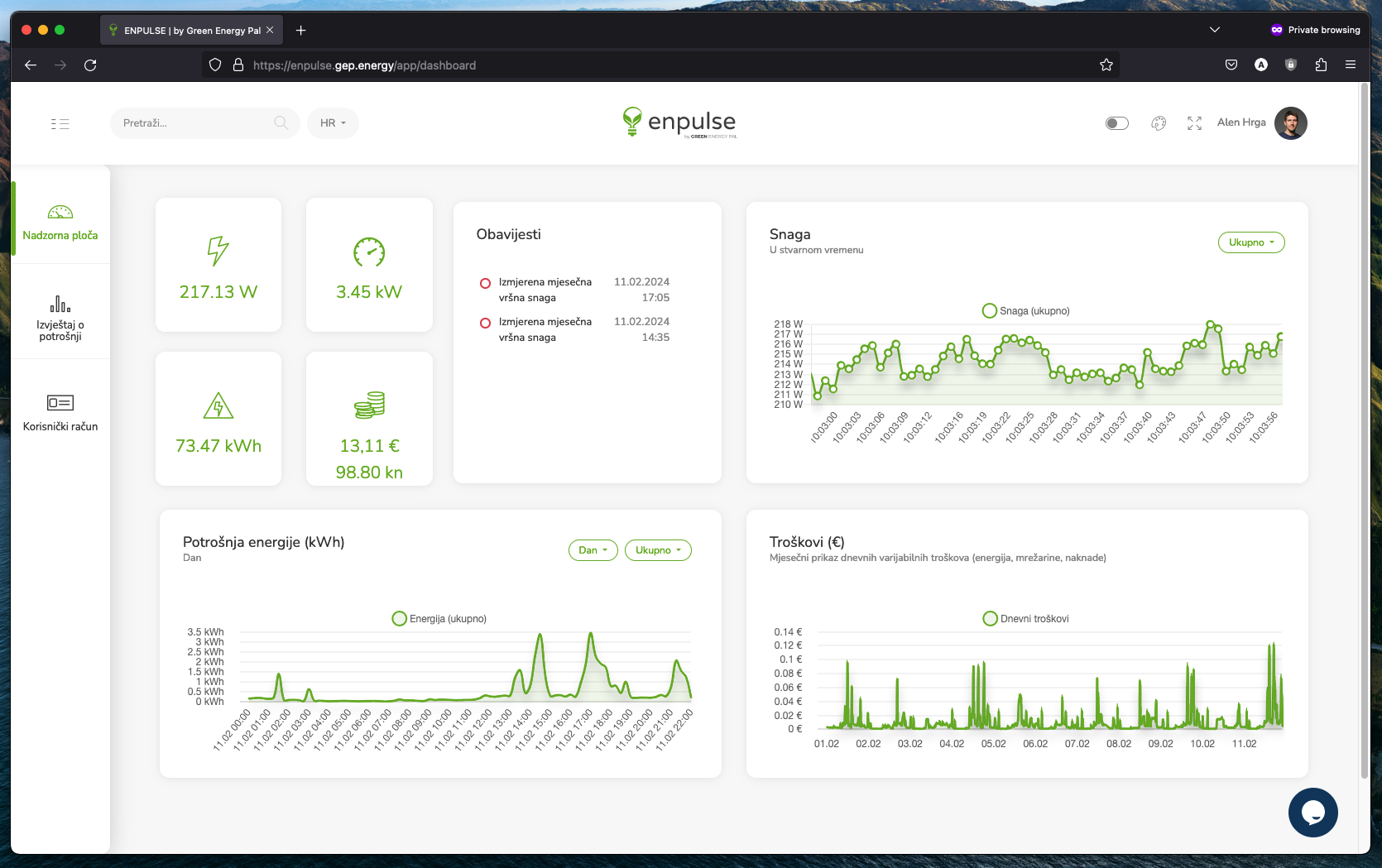
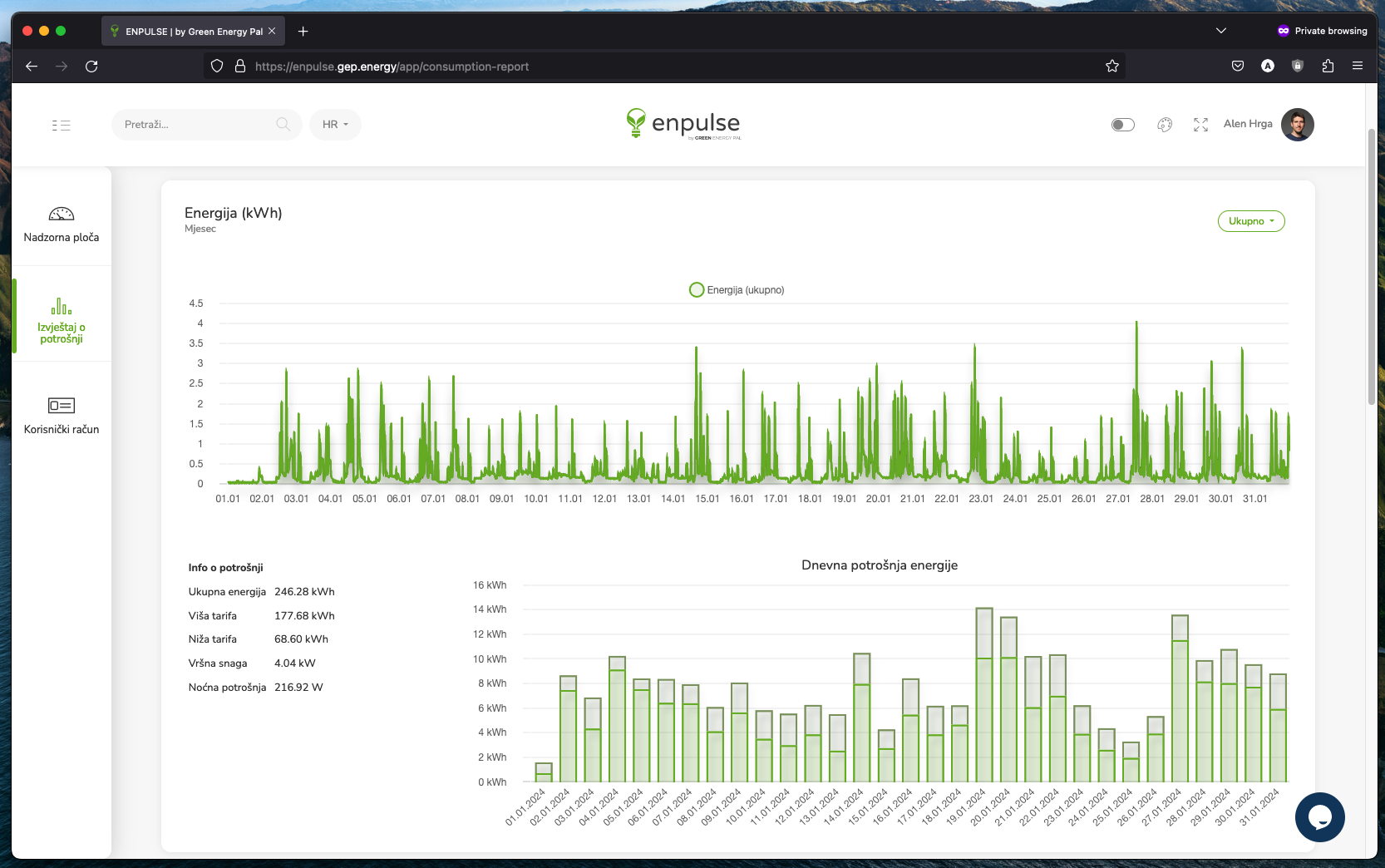
Once the Enpulse Metering Box is installed, it needs to be connected to the Enpulse Cloud application. Below are the steps you need to take to achieve this and have the Enpulse Metering Box start measuring and displaying data.
1. Connecting to the Wi-Fi hotspot of the Enpulse Metering Box
Using a laptop or smartphone, find the Wi-Fi network created by the Enpulse Metering Box. The network is called Enpulse-Meter-<xxxxx> where xxxxx is a five-digit number representing the unique identifier of the device. The password to access this Wi-Fi network can be found in the Enpulse Metering Box packaging and on the sticker on the side of the device.
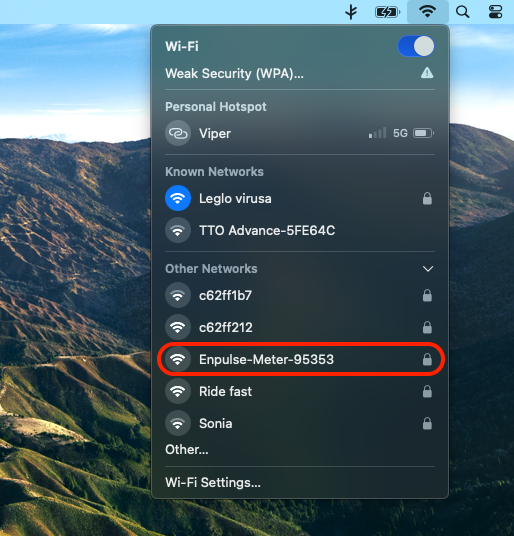
After connecting to this network, open the Enpulse web portal by scanning the QR code below or go to this address http://192.168.50.1:9190.

If you connect via mobile, there is a possibility that your phone will disconnect you from the Enpulse-Meter-<xxxxx> network and return to your home internet because there is no internet access through the Enpulse-Meter-<xxxxx> network. If your phone disconnects you, you need to reconnect. If the problem persists, feel free to contact us for help.
2. Connect the Enpulse Metering Box to your home Wi-Fi network
Once you have opened the Enpulse web portal, you will see the configuration page as shown below. Click the "Start configuring Enpulse Metering Box" button.
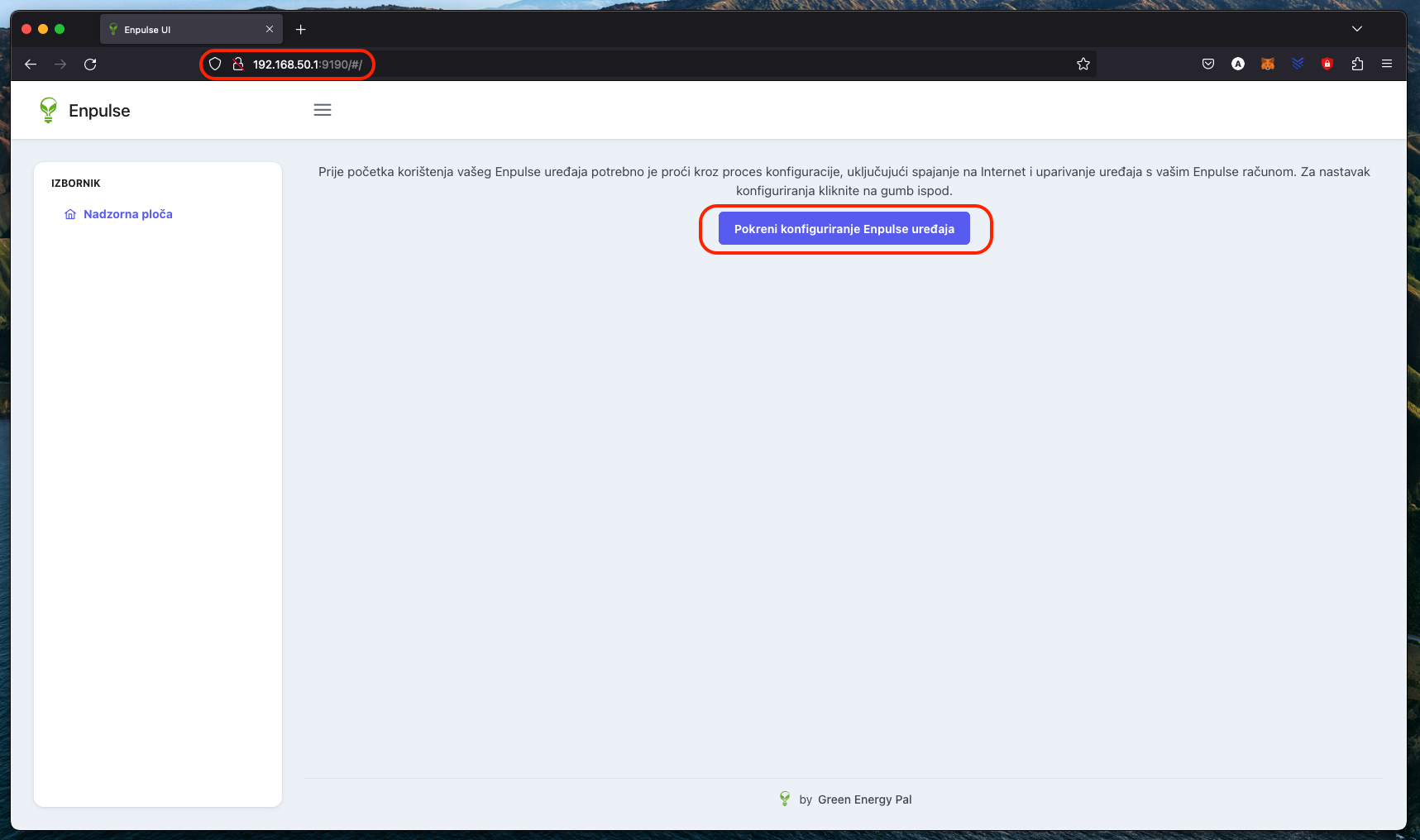
Then follow the on-screen instructions to connect the Enpulse Metering Box to your home Wi-Fi network.
1. Scan available Wi-Fi networks
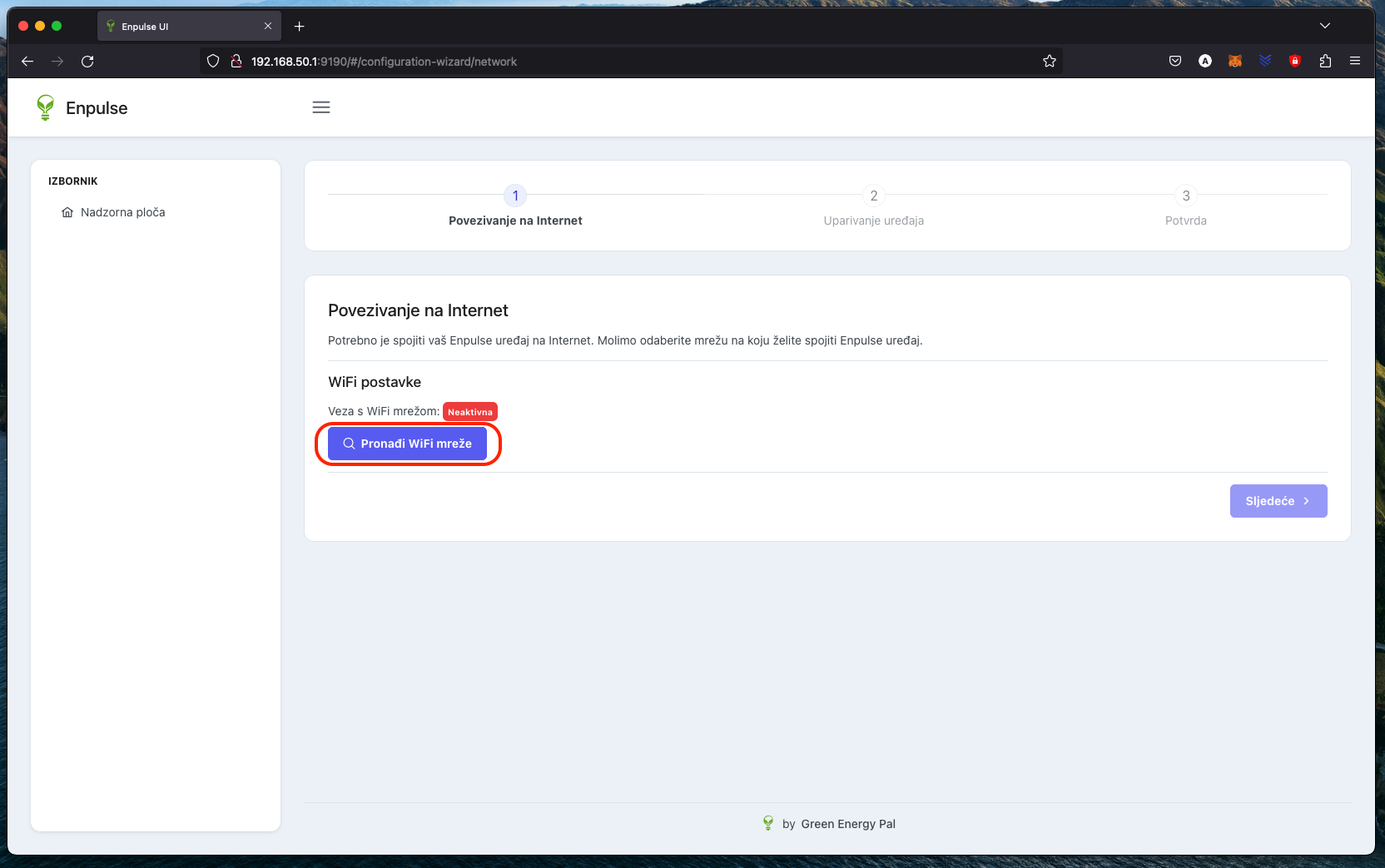
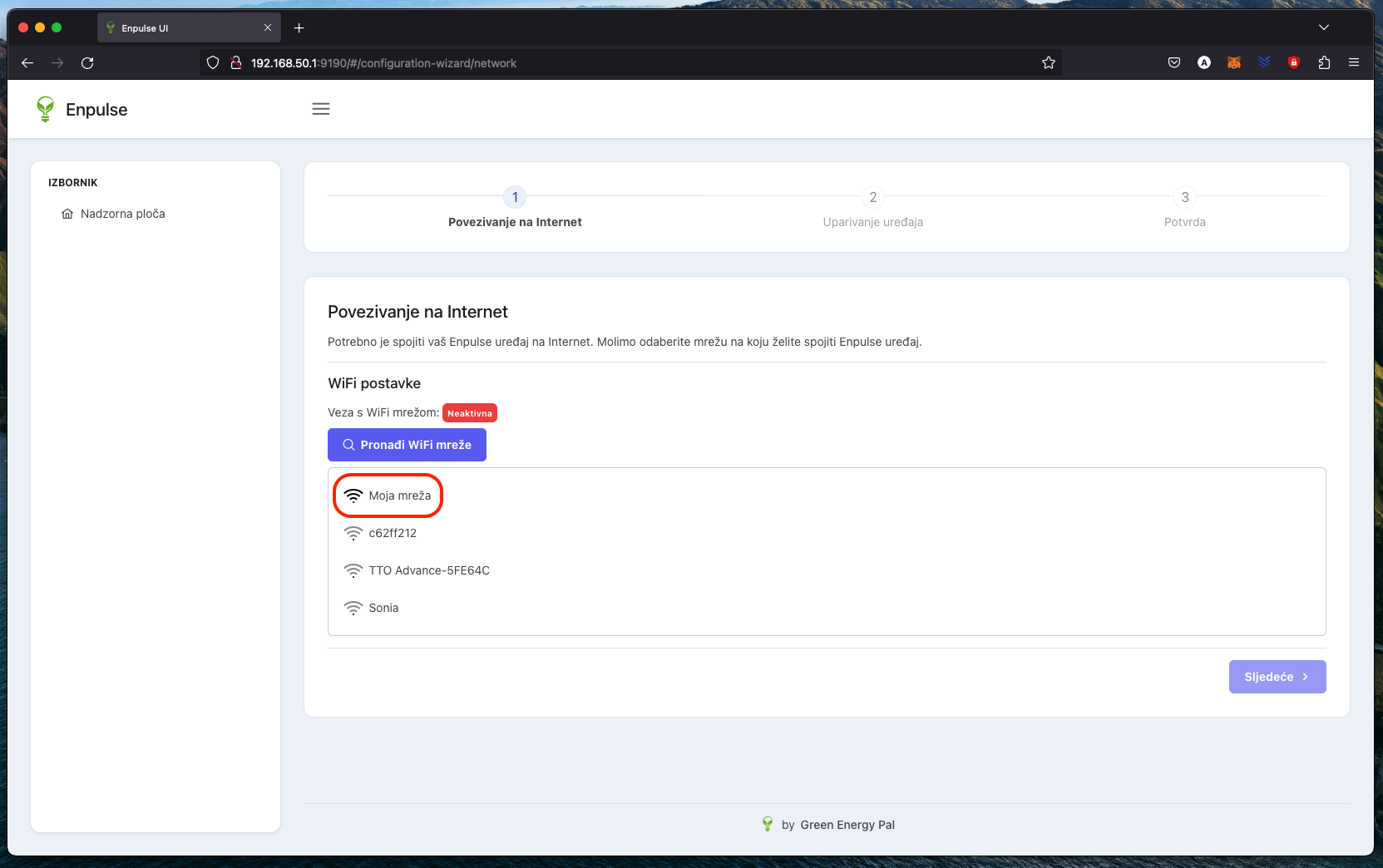
2. Select your Wi-Fi network
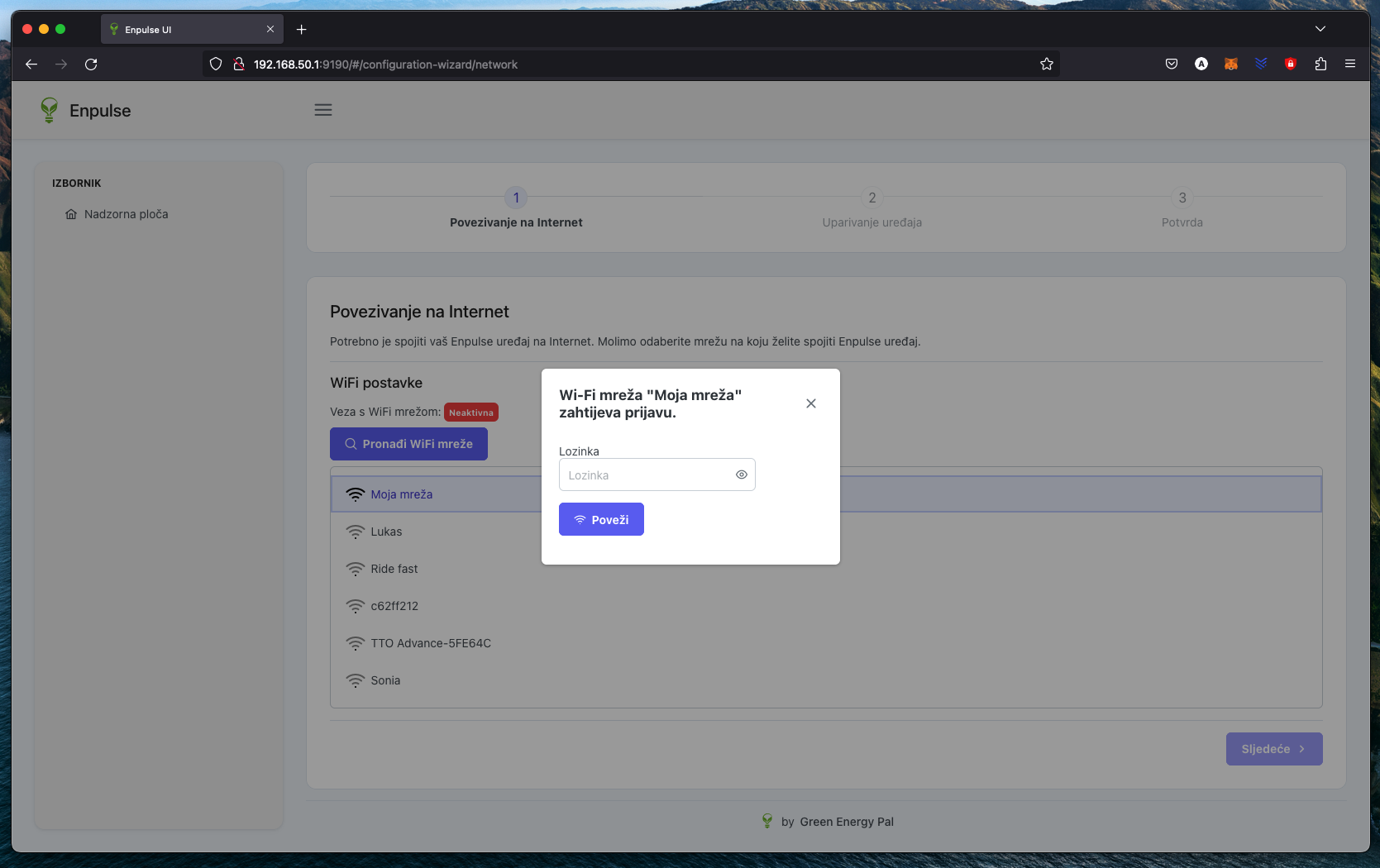
3. Enter the password and click "Connect"
4. Wait for the Enpulse Metering Box to connect to Wi-Fi
This can take a few minutes. Once the Metering Box successfully connects to Wi-Fi, the selected Wi-Fi network will be marked as "Connected".
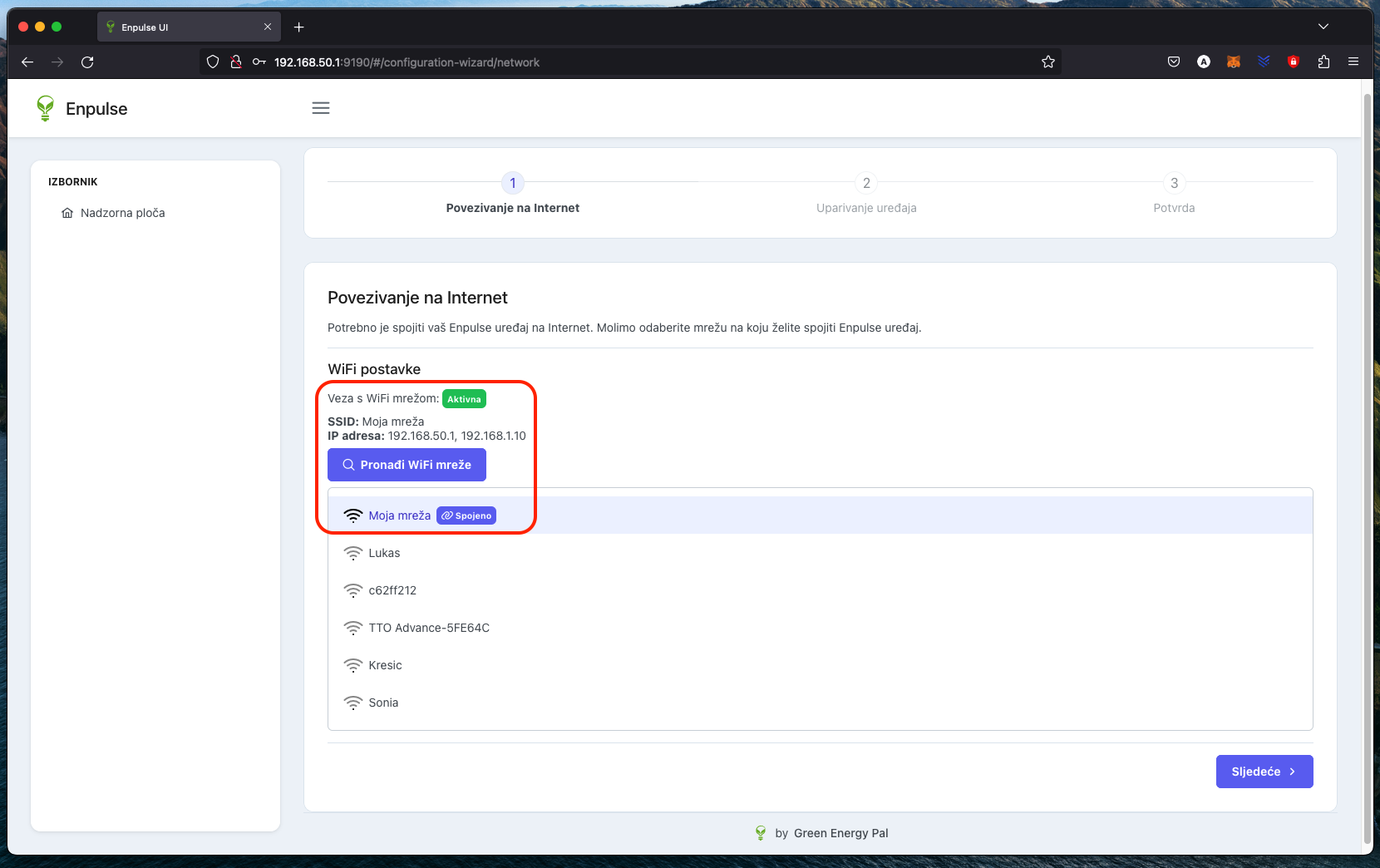
If the Metering Box has already been connected to your Wi-Fi network, you will be notified on the screen as shown below, and in that case, you can immediately click the "Next" button.
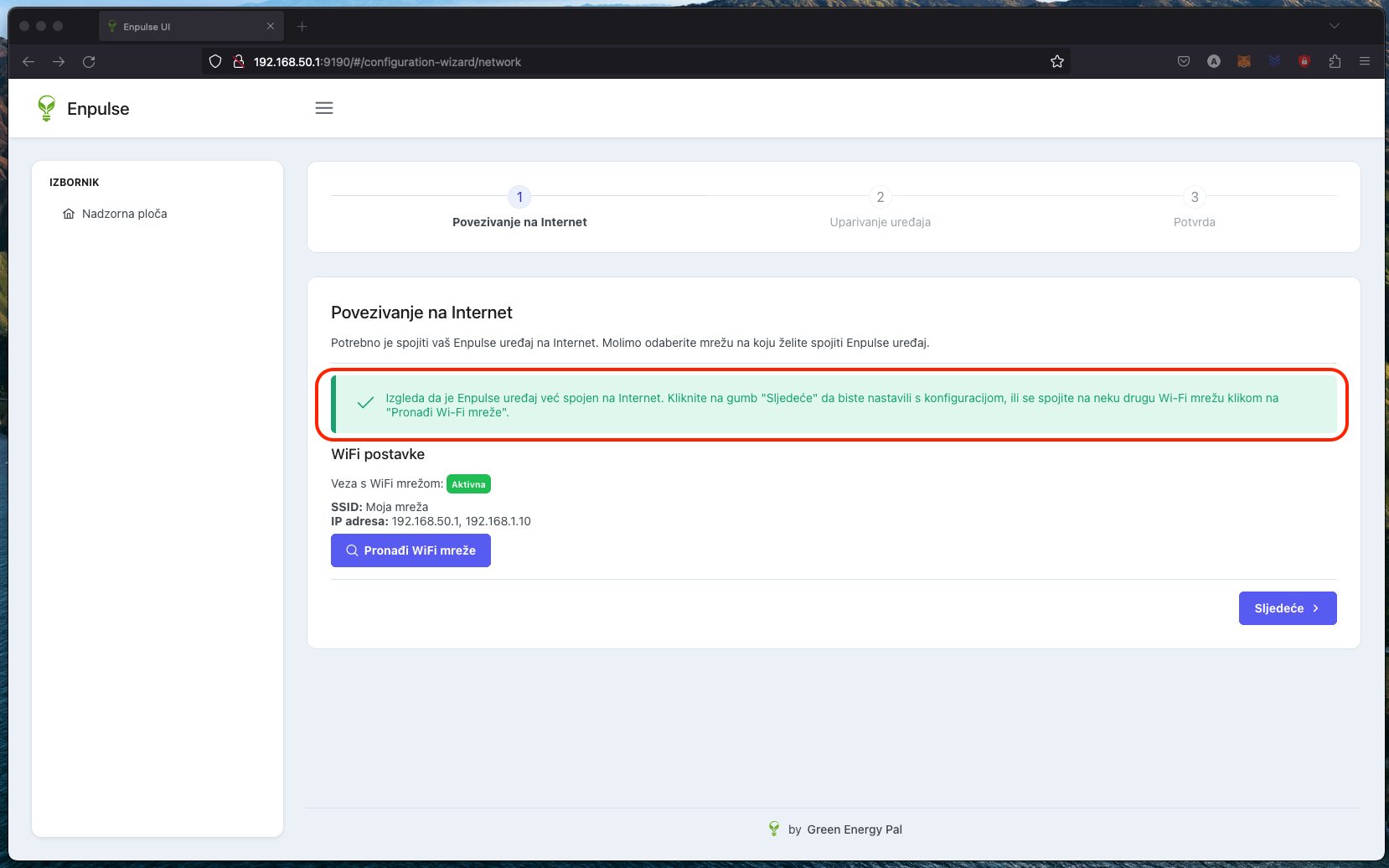
5. Click the "Next" button
3. Pair the Enpulse Metering Box with the Enpulse Cloud application
After successfully connecting the Enpulse Metering Box to your home Wi-Fi network, follow the on-screen instructions to pair the Metering Box with the Enpulse Cloud application.
Enter your Enpulse Cloud application username and password You chose the username and password during the registration for the Enpulse Cloud application or it was provided to you by the administrator. If you need help, contact technical support at info@gep.energy.
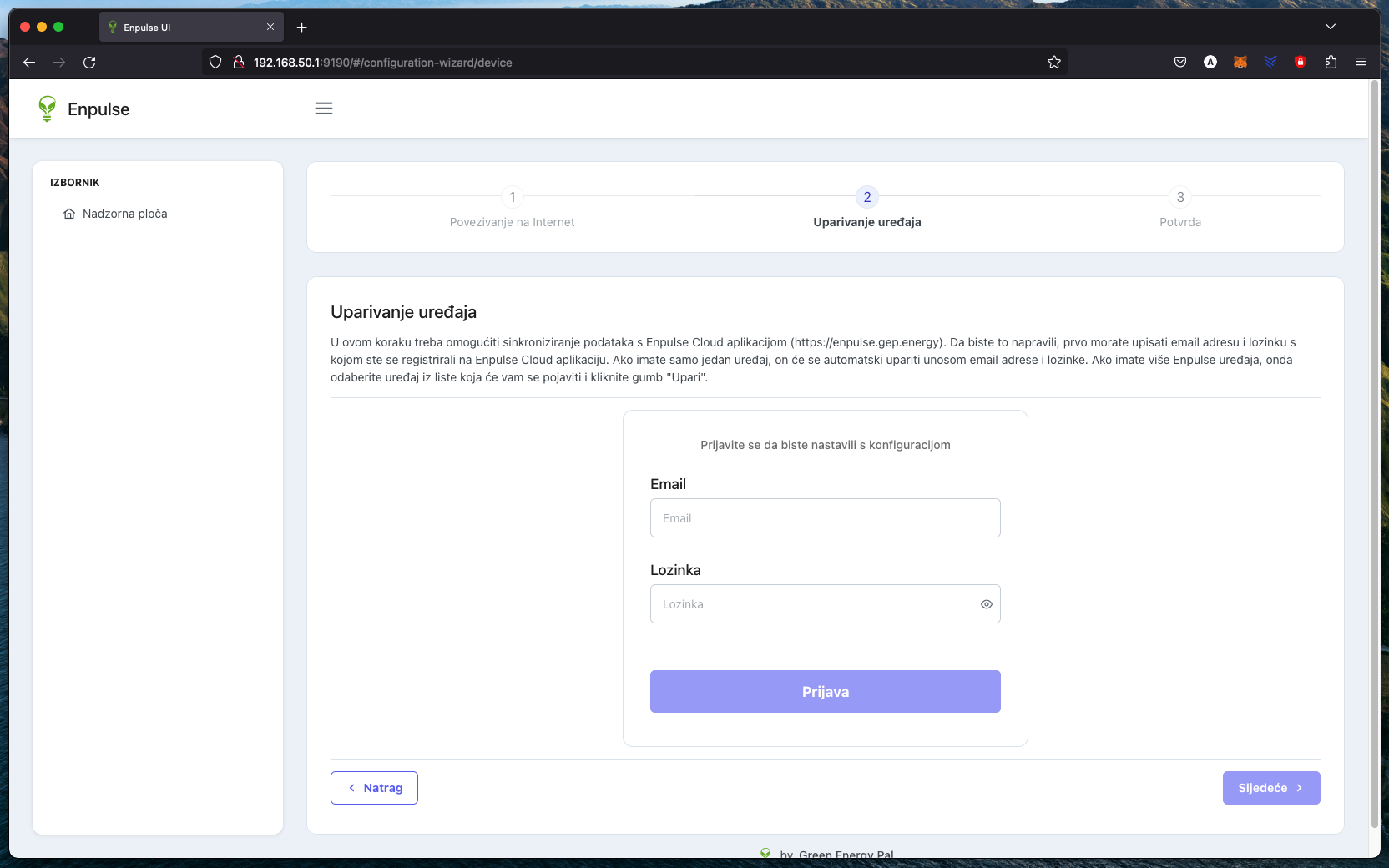
After entering your username and password, click the "Login" button. If you purchased one Metering Box, it will automatically pair with your user account, and you will see a successful pairing message as shown below. If you do not see the message within a few minutes, click the "Pair device" button to try pairing the Metering Box again.
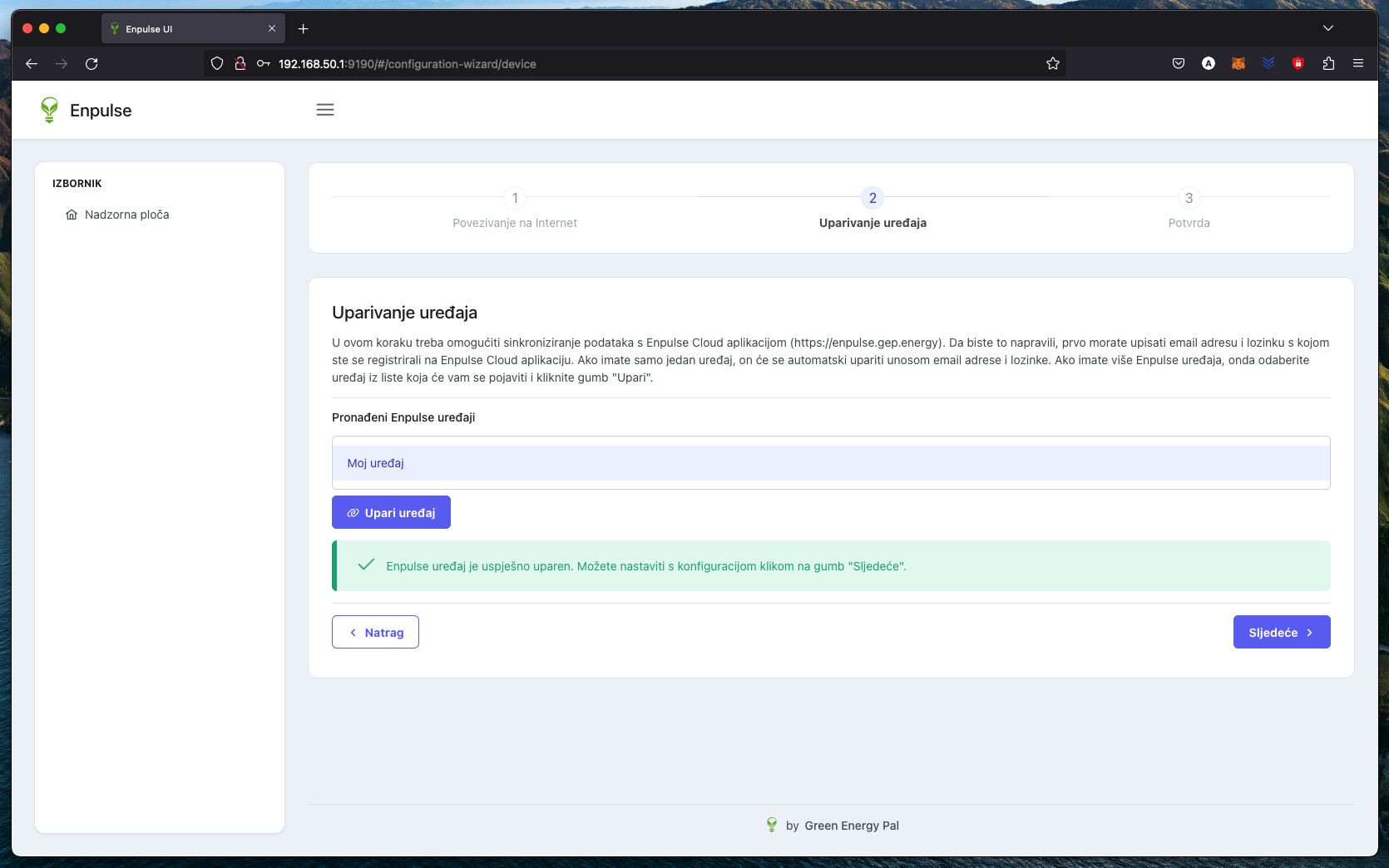
If you have more than one Metering Box, you will see a list of all the Metering Boxes you own. In that case, select the one you want to pair and click the "Pair device" button. After seeing the successful pairing message, click the "Next" button.
4. Data Confirmation
After successfully pairing the Metering Box with the Enpulse Cloud application, you will see a data confirmation page. If all the data is correct, click the "Finish configuration" button (image below). If you want to change some data, click the "Back" button.
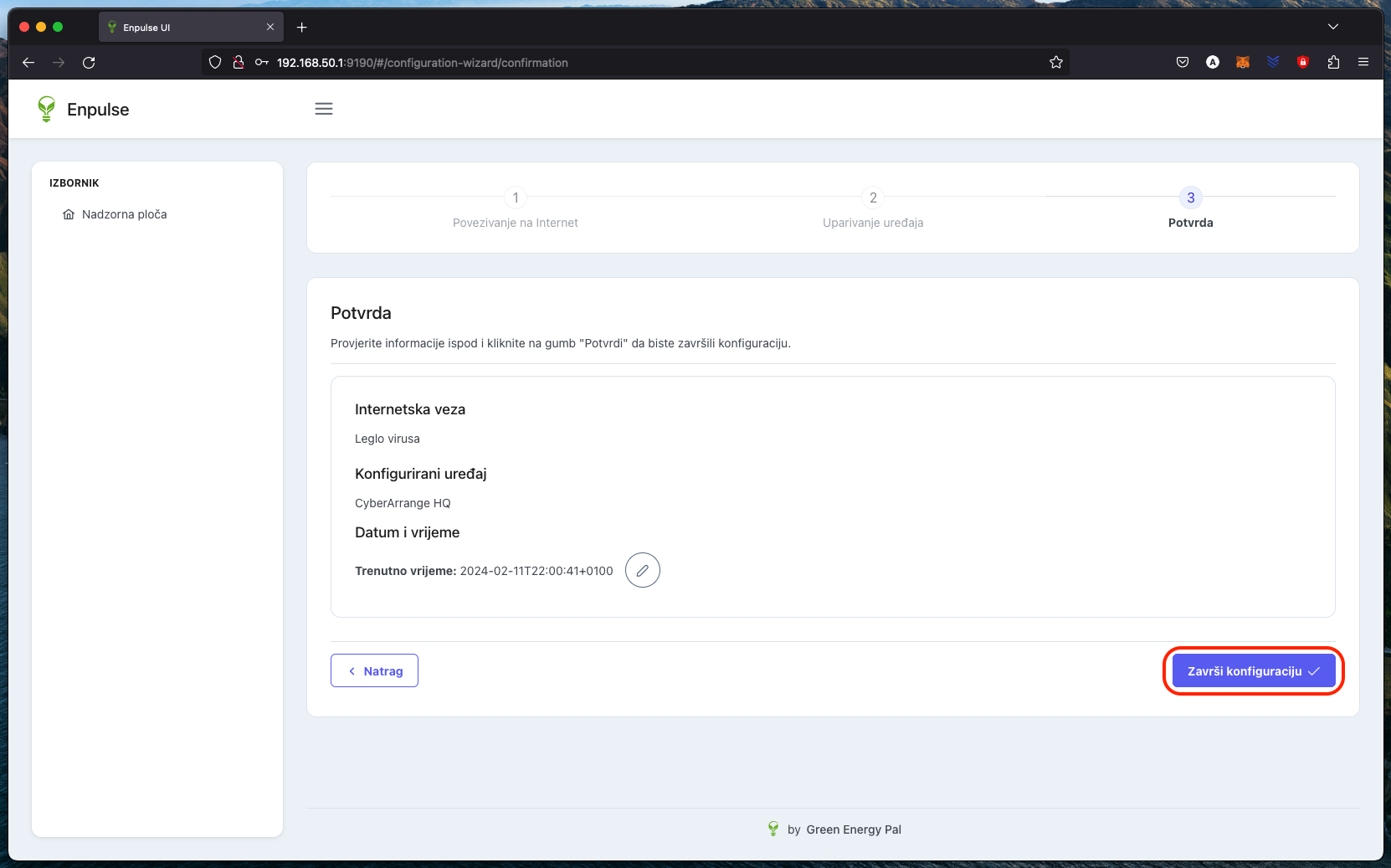
After clicking the "Finish configuration" button, the Enpulse Metering Box will prepare for first use, which can take a few minutes. Once it finishes, you will be redirected to the Enpulse web portal homepage.
5. Enpulse web portal
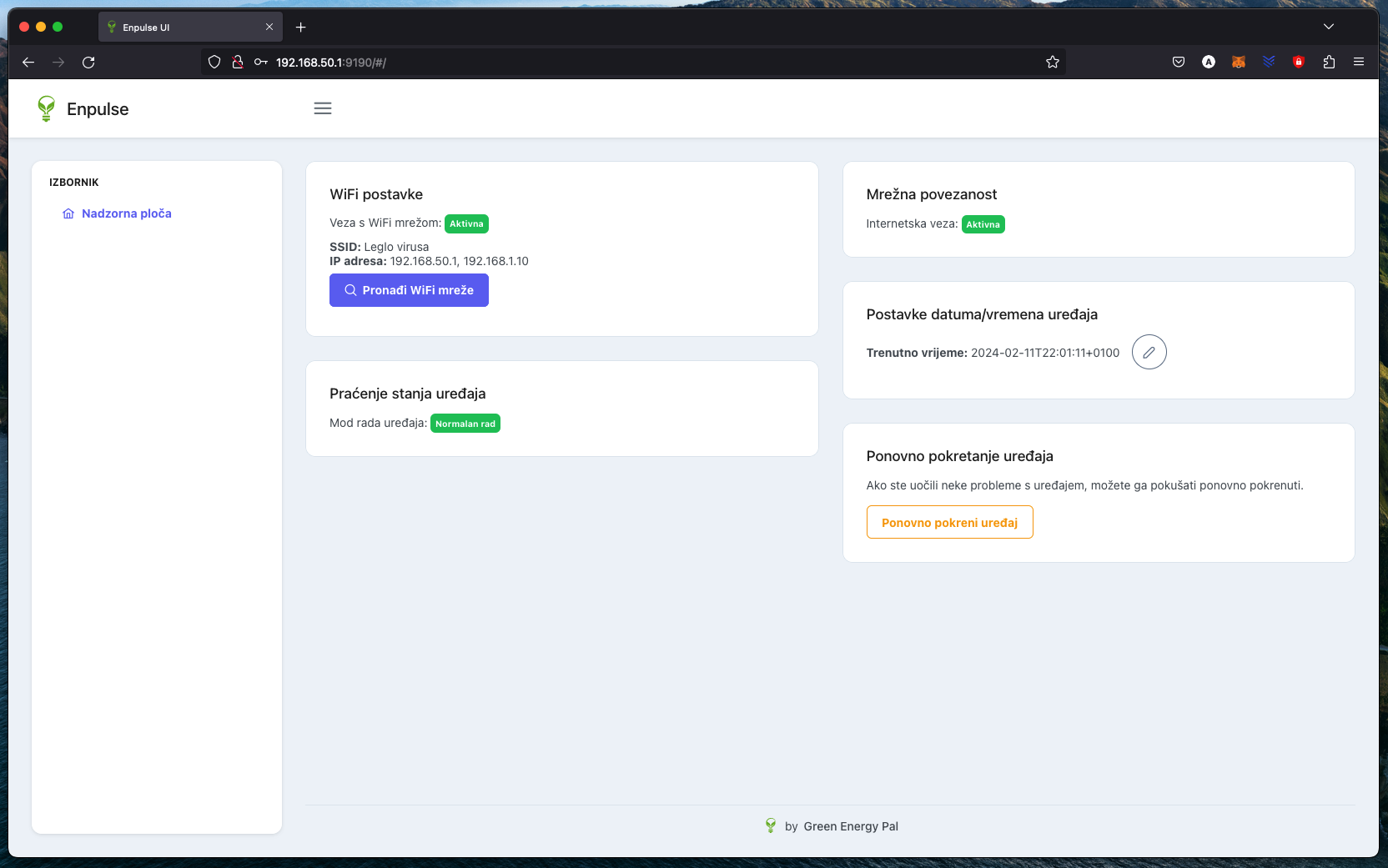
After successfully connecting the Enpulse Metering Box with the Enpulse Cloud application, you can access the Enpulse web portal. On the web portal you can:
- Monitor the status of the Enpulse Metering Box
- Check network connectivity
- Set the date and time on the Enpulse Metering Box
- Restart the Enpulse Metering Box (in case of problems)
Enjoy the Enpulse experience!
You can disconnect your laptop/smartphone from the Enpulse Metering Box Wi-Fi hotspot, reconnect to your home Wi-Fi network, and use the Enpulse Cloud application to monitor your real-time electricity consumption.
Website: https://enpulse.gep.energy
Enjoy the Enpulse experience!